

Fog
Fog in Game Guru Classic is used to control how the environment fades into the distance and can greatly influence mood, atmosphere, and performance. It is commonly used to hide level boundaries, soften distant geometry, and create depth in both indoor and outdoor scenes.
Fog settings are adjusted through the level or environment options in the editor.
Once fog is enabled, changes to its values are visible immediately while testing the level, making it easy to fine-tune how much of the scene is affected.
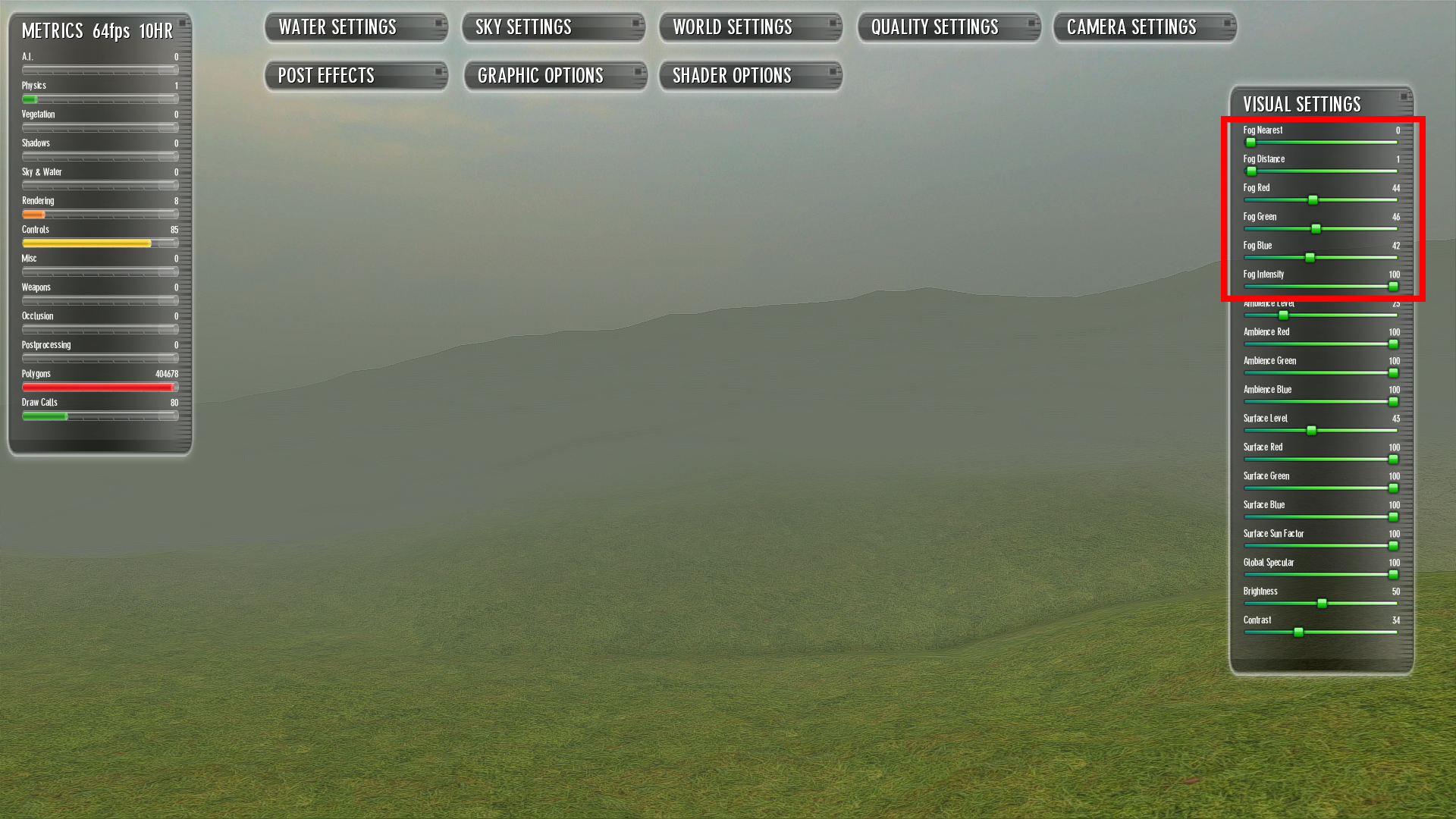
The Fog Nearest value controls how close fog begins to appear in front of the player. A lower nearest value causes fog to start very close to the camera, which can create a heavy, enclosed, or misty feeling. A higher nearest value pushes the fog start point farther away, keeping nearby objects clear while only affecting the distance.
The Fog Distance value determines how far from the player the fog reaches full strength. This is the point where objects become fully blended into the fog color. Shorter distance values cause objects to disappear more quickly, which can help hide draw distance limits or improve performance. Larger distance values allow the player to see farther before the fog fully takes over.
Fog Color defines the visual tone of the fog and strongly affects the overall look of the level. Lighter colors can create a hazy or washed-out atmosphere, while darker colors can add tension or mystery. Matching the fog color to the skybox or environment lighting usually results in a more natural and believable transition into the distance.
The Fog Intensity or strength control adjusts how intense the fog appears. Lower transparency values produce a subtle effect that gently fades distant objects, while higher values create thick, heavy fog that quickly obscures visibility. This setting is especially useful for balancing atmosphere against gameplay visibility.
Fog works best when tuned in combination with lighting and skybox settings.
After adjusting fog, it is recommended to walk through the level and observe how visibility changes in open areas, corridors, and elevated viewpoints.
Small adjustments to nearest distance, far distance, and intensity can have a large impact on how the scene feels during gameplay.
Properly configured fog can enhance depth, improve performance by reducing distant rendering, and reinforce the intended mood of a level. Whether used subtly or heavily, fog is an important tool for shaping the visual experience in Game Guru Classic.